Unlock Seamless Live Streaming with the StreamYard App

Thinking about going live? Maybe you've heard about StreamYard, or maybe you're just trying to figure out the best way to get your message out there. It can seem a bit much at first, all the tech stuff and making sure people actually see what you're doing. But honestly, it doesn't have to be complicated. The StreamYard app makes it pretty simple to get started and keep things running smoothly. We'll look at how you can use it, what makes it good, and who it's really for.
Key Takeaways
- The StreamYard app is a web-based tool, meaning you don't need to download anything to start streaming.
- You can easily add multiple places to send your live video, like Facebook pages, YouTube, and LinkedIn, all at once.
- StreamYard lets you add your own look, like logos or colors, and even show comments from people watching.
- You can schedule your streams ahead of time and record them to use later for editing or sharing.
- There's a free version of the StreamYard app that's good for starting out, with paid options if you need more features.
Getting Started with the StreamYard App
So, you're ready to jump into live streaming with StreamYard? It's actually pretty straightforward, even if you've never done this before. Think of it like setting up a video call, but with a lot more polish and options for your audience. The first thing you'll want to do is get yourself an account.
Signing Up for Your StreamYard Account
This is the easy part. You just head over to the StreamYard website and sign up using your Google or Facebook account. No need to remember another password! Once you're in, you'll see a clean dashboard. It's designed to be simple, so you're not overwhelmed right away. You can get started with their free plan, which is quite generous, or explore their paid options if you need more features. It's a good way to test the waters before committing.
Adding Your First Broadcast Destination
Next up, you need to tell StreamYard where you want your stream to go. This could be Facebook, YouTube, LinkedIn, or even a custom RTMP destination. You'll see a list of options when you click to add a destination. Just follow the prompts to connect your account – it usually involves a quick authorization step. This connection is what allows StreamYard to send your broadcast out to your chosen platform. It's a one-time setup for each platform, so once it's done, you're good to go for future streams.
Navigating the StreamYard Interface
Once you've got your account and destination set up, you'll want to create your first broadcast. Click on "Create Broadcast" and give your stream a title and description. You can even schedule it for later if you're planning ahead. When you're ready, hit "Enter Broadcast Studio." Inside the studio, you'll see a few key areas. On the right, you'll find your "Local" feed, where you and any guests will appear. You need to add yourself to the stream by clicking on your feed and then "Add to Stream." The main central area is what your viewers will see. Below that, you have controls for adding graphics, changing layouts, and managing comments. It's all laid out logically, making it simple to manage your stream in real-time. You can check out this beginner's guide for a more detailed walkthrough setting up StreamYard.
The interface is designed to keep the focus on your content. You don't need to be a tech wizard to make your stream look professional. Everything is right there, easy to find and use, so you can concentrate on talking to your audience instead of fiddling with complicated settings.
Enhancing Your Live Streams with StreamYard
So, you've got the basics down with StreamYard, but how do you make your streams really pop? It's all about adding those extra touches that grab attention and keep people watching. Think of it like decorating a cake – the basic cake is good, but the frosting and sprinkles make it special.
Integrating Visuals and Branding Elements
First off, let's talk about making your stream look like yours. StreamYard lets you easily add your own logos, custom backgrounds, and overlays. This is super important for building brand recognition. You can even set up banners or tickers that scroll across the bottom of your screen for announcements or a call to action. It makes your stream look professional, like you've put in the effort, even if it was pretty simple to set up.
Incorporating Pre-recorded Videos and Screen Sharing
Sometimes, you don't want to be live for everything. Maybe you have a polished intro video, a product demo, or a tutorial you want to show. StreamYard lets you play pre-recorded videos right in your stream. Plus, screen sharing is a lifesaver for tutorials or presentations. You can show your whole screen or just a specific application window. This flexibility means your content can be more varied and engaging.
Utilizing Custom Overlays and Backgrounds
This is where you can really get creative. Overlays aren't just pretty pictures; they can display information, like a guest's name and title, or a special offer. Backgrounds can hide a messy room or add a consistent visual theme. StreamYard makes it easy to upload these assets and apply them. You can even create different layouts for different parts of your stream. The goal is to make your stream look polished and professional without needing a full production crew.
Adding these visual elements is more than just aesthetics; it's about creating a consistent and recognizable presence for your brand or personal channel. It helps viewers identify your content instantly and builds a sense of familiarity and trust over time.
Here's a quick look at how you can add these elements:
- Logos: Upload your logo to appear in a corner of the screen.
- Overlays: Use pre-designed or custom graphics to frame your video or add information.
- Backgrounds: Replace your actual background with a branded image or video.
- Banners/Tickers: Display scrolling text for announcements or links.
StreamYard also provides studio-quality local recordings in up to 4K resolution with 48 kHz audio, which is great for repurposing your content later. You can check out more about their features here.
Maximizing Audience Engagement with StreamYard
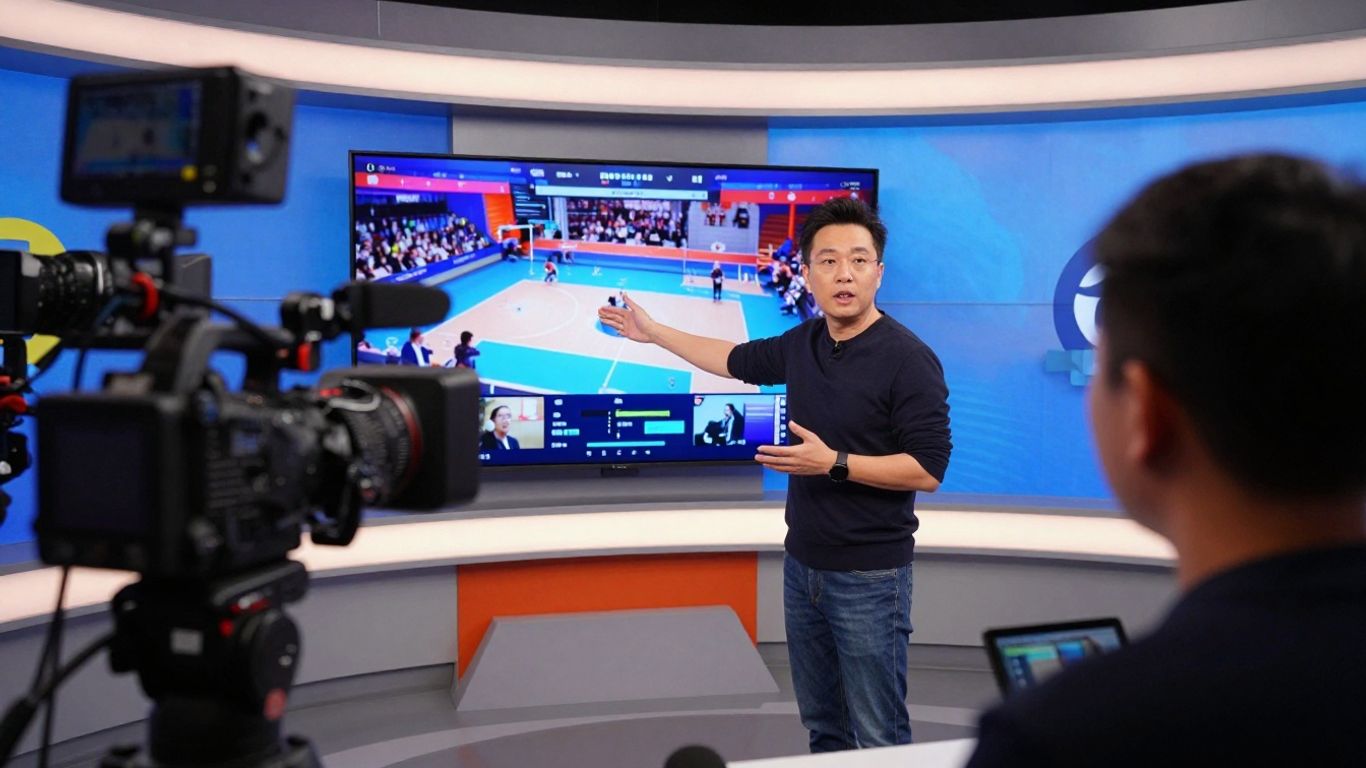
Live streaming is all about connecting with people, right? StreamYard really helps make that happen. It's not just about broadcasting; it's about making your viewers feel like they're part of the show. The real magic happens when you turn passive watchers into active participants.
Displaying and Managing Live Viewer Comments
Seeing comments pop up on screen during your stream is a game-changer. StreamYard makes it super easy to pull viewer comments right into your broadcast. This means you can react to what people are saying in real-time, making your stream feel more like a conversation than a lecture. You can pick which comments to show, highlight great ones, or even hide anything that doesn't fit. It keeps the chat relevant and shows your audience you're paying attention.
Here's a quick rundown of how it works:
- Select Comments: Choose specific comments from your chat feed to display on screen.
- Highlight Key Messages: Pin important questions or feedback to keep them visible.
- Moderate Effectively: Filter out spam or off-topic remarks to maintain a positive atmosphere.
This direct interaction is a big part of building a community around your content. It makes people feel valued and more likely to stick around.
Hosting Interactive Q&A Sessions
Q&A sessions are fantastic for engagement, and StreamYard simplifies the process. You can easily bring questions from the live chat onto the screen for everyone to see. This is great for tutorials, interviews, or just general audience interaction. It helps you stay focused on answering questions without getting lost in the chat.
Hosting live Q&A sessions can significantly boost viewer retention. When people feel their questions are being addressed directly, they're more invested in the outcome of the stream.
Leveraging Gifted Memberships and Community Features
While StreamYard itself doesn't directly handle gifted memberships, its integration with platforms like YouTube means you can still benefit from these community-building tools. When viewers gift memberships, it's a clear sign of support. By using StreamYard to broadcast to these platforms, you can acknowledge these gestures on-screen, perhaps by highlighting a gifted membership comment. This recognition goes a long way in making your supporters feel appreciated and encouraging more community interaction. It's all about making your audience feel seen and part of something special, which is a core part of audience engagement tools.
StreamYard's focus on simplicity means you spend less time fiddling with tech and more time connecting with your viewers. This makes it a solid choice for anyone looking to create a more interactive live stream experience, especially when you're multistreaming to different platforms at once.
StreamYard's Powerful Broadcasting Capabilities
When you're live, you want things to just work, right? StreamYard really shines when it comes to just getting your stream out there, and doing it well. It's not just about hitting 'go live'; it's about making sure your broadcast reaches who it needs to, when it needs to, and in the best way possible.
Multi-Platform Simultaneous Broadcasting
This is a big one. Instead of setting up separate streams for YouTube, Facebook, and maybe LinkedIn, StreamYard lets you push your broadcast to all of them at the same time. It's like having a single control panel for all your social media channels. This saves a ton of time and hassle, and it means your message gets to more people without you having to manage multiple windows or software.
- Broadcast to Facebook Pages and Groups
- Stream to YouTube Channels
- Send your feed to LinkedIn Profiles and Pages
- Connect to Twitch accounts
This ability to multistream is a game-changer for anyone trying to build a presence across different platforms. You can find out more about how it works on the StreamYard website.
Scheduling Your Live Broadcasts in Advance
Planning is everything, and StreamYard gets that. You can schedule your streams ahead of time, which is super useful. It gives you a concrete date and time to promote to your audience, building anticipation. Plus, it means you don't have to scramble to set everything up right before you go live. You can set it and forget it, knowing your stream is ready to go.
- Pick your date and time.
- Add a title and description.
- Choose your destinations (like Facebook or YouTube).
Scheduling helps create a consistent presence and makes it easier for your audience to remember when to tune in. It turns live streaming from a spontaneous event into a planned part of your content calendar.
Recording and Repurposing Your Streams
What happens after the live show ends? With StreamYard, your broadcast is automatically saved in your library. This is incredibly handy. You can download the raw footage and then edit it into highlight clips, shorter videos for other platforms, or even use it as a basis for a blog post. It means your live effort doesn't just disappear after the broadcast; it becomes content you can use again and again. This is a huge benefit for getting the most out of your time and effort, as detailed on the StreamYard platform.
| Feature | Benefit |
|---|---|
| Automatic Recording | Saves time, no manual setup needed |
| Downloadable Footage | Allows for editing and repurposing |
| Library Access | Easy to find and manage past broadcasts |
StreamYard Integrations for Extended Reach
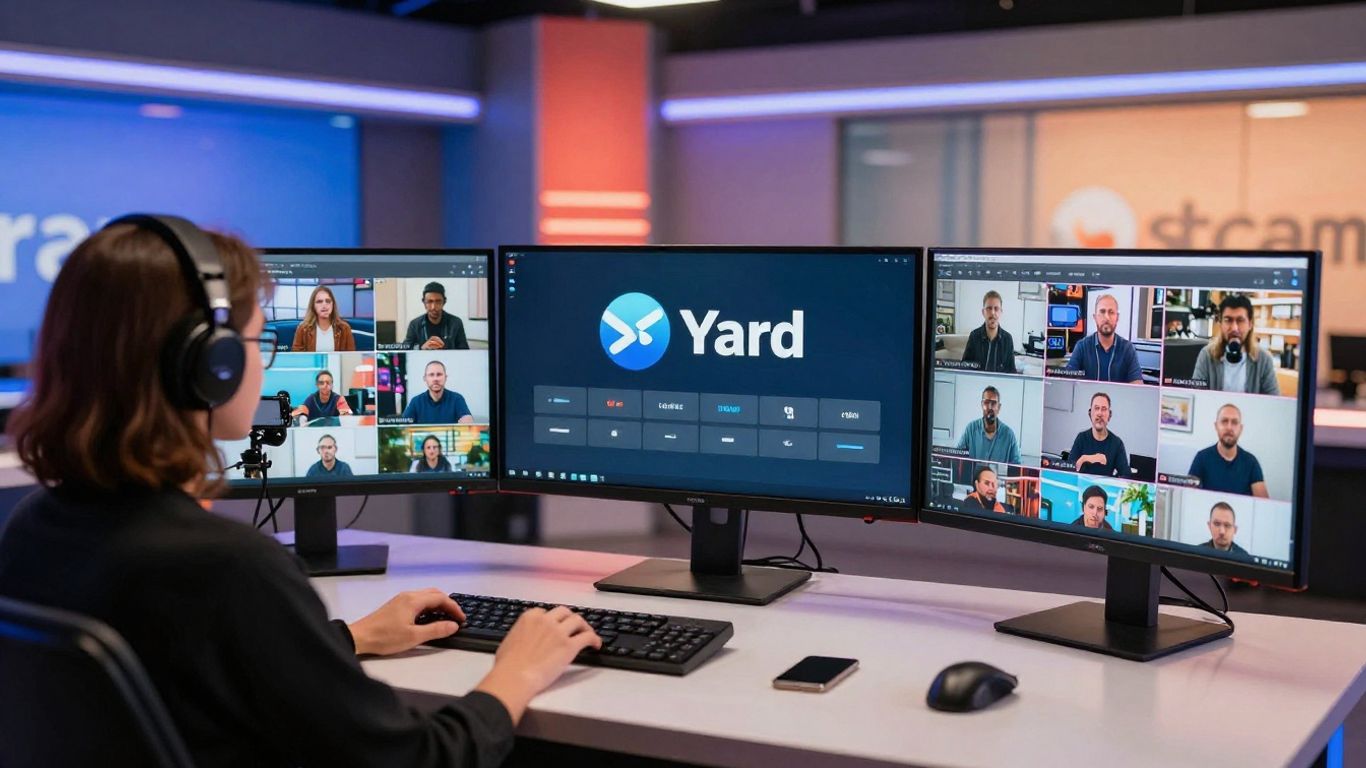
You know, getting your stream out there is half the battle. StreamYard gets this, and it's packed with ways to connect your broadcast to more places than just one. It's not just about hitting 'go live' and hoping for the best; it's about strategically putting your content where your audience already is.
Connecting Your LinkedIn Profile for Professional Streaming
If you're in the professional world, LinkedIn is probably a big part of your networking. StreamYard lets you easily link up your LinkedIn profile or company page. This means you can share live updates, product demos, or even host Q&A sessions directly with your professional network. It’s a solid way to boost your presence and share insights without leaving the StreamYard interface. Think about sharing industry news or a quick tutorial – it’s all possible right there on your LinkedIn page.
Streaming to Custom Destinations via RTMP
For those who need a bit more control or want to stream to platforms not directly supported, RTMP is your friend. StreamYard supports RTMP (Real-Time Messaging Protocol), which is basically a standard way to send video and audio data. This opens up a lot of possibilities. You can send your stream to a specific website, a private server, or any platform that accepts an RTMP input. It’s a bit more technical, sure, but it gives you a lot of flexibility if you have specific needs.
- Set up your RTMP destination: You'll need the RTMP URL and stream key from your custom platform.
- Input details into StreamYard: Go to your broadcast settings and add a custom RTMP destination.
- Go live: Once configured, you can broadcast to this custom location just like any other platform.
StreamYard's Zapier Integration for Workflow Automation
This is where things get really interesting for streamlining your work. Zapier acts as a bridge between different apps, and StreamYard connects with it. What does this mean for you? It means you can automate tasks related to your streams. For example, you could automatically add a new subscriber from a StreamYard broadcast to your email list, or maybe post a notification on Slack when you go live. It helps connect your streaming efforts to your broader marketing or communication workflows.
Automating repetitive tasks frees up your time to focus on creating great content and engaging with your audience. Zapier makes these connections simple, even if you're not a coder.
These integrations mean you're not just streaming; you're connecting your live content to your wider digital strategy. It’s about making your streams work harder for you, reaching more people, and fitting into your existing processes. If you're looking for ways to expand your streaming's impact, checking out integrations like these is a smart move. It’s also worth noting how StreamYard compares to other tools when it comes to chat integration, like with Discord.
Who Benefits Most from the StreamYard App
So, who exactly is this StreamYard app built for? Honestly, it feels like it was made for a lot of different people, which is pretty cool. Whether you're just starting out or you've been doing this for a while, there's likely something here for you.
StreamYard for Content Creators and Influencers
If you're someone who puts content out there regularly, like on YouTube, Twitch, or even Instagram, StreamYard can really make your life easier. It's not just about going live; it's about making those live sessions look good and feel engaging. You can easily bring guests onto your stream, which is great for interviews or co-hosted shows. Plus, adding your own logos or custom graphics is simple, giving your channel that professional touch. This makes building a consistent brand across your streams much more manageable. It also records your broadcasts automatically, so you don't have to worry about losing that content. You can then download these recordings and use them for other videos or posts later on.
StreamYard for Marketers and Businesses
Businesses can get a lot out of StreamYard too. Think about product launches, team meetings, or even webinars. The ability to share your screen is a big plus for demos or presentations. You can also stream to multiple platforms at once, which means reaching more potential customers or clients without extra hassle. It's a solid way to connect with your audience in real-time, answer questions, and show off what you offer. For businesses looking to expand their reach, using StreamYard's Facebook integration can be a smart move.
StreamYard for Educators and Webinar Hosts
For anyone teaching or hosting online events, StreamYard simplifies things. You can easily set up interactive sessions where viewers can ask questions that you can display right on the screen. This keeps people involved and makes the learning experience more dynamic. Scheduling your broadcasts in advance is also a lifesaver for planning, letting your audience know exactly when to tune in. It's a reliable way to ensure your message gets across clearly, without technical glitches getting in the way. If you're comparing different options, this 2026 buyer's guide might help you see where StreamYard fits in.
Understanding StreamYard's Value Proposition
The Generous Free Plan of the StreamYard App
So, you're thinking about live streaming but worried about the cost? StreamYard gets it. They actually have a free plan that's pretty darn good. It lets you get your feet wet without spending a dime. You can broadcast to platforms like Facebook and YouTube, and even bring on guests. It’s a solid way to test the waters and see if live streaming is for you. Honestly, for a free option, it packs a punch and is a great starting point for anyone just beginning their streaming journey.
Affordable Pricing for All Budgets
Beyond the free tier, StreamYard keeps things reasonable. They have different paid plans, and the pricing feels fair for what you get. Whether you're a solo creator or part of a small business, there's likely a plan that fits your wallet. These plans unlock more features, like custom branding, longer broadcast times, and the ability to stream to more places at once. It’s not one of those services where you need to take out a loan to use it. You can check out their pricing options to see what works best.
Reliability and High-Quality Streaming Experience
When you go live, the last thing you want is for things to glitch out or crash. StreamYard is known for being pretty stable. You can expect smooth, clear streams without a lot of fuss. They focus on making sure your broadcast looks and sounds good, which is important for keeping your audience tuned in. This dependability means you can focus more on your content and less on worrying if the tech will hold up. It’s a platform that aims to give you a professional feel, even if you’re just starting out.
The platform's focus on user experience means you don't need to be a tech wizard to produce professional-looking streams. It simplifies complex processes, making live broadcasting accessible to a wider range of users.
Here’s a quick look at what makes StreamYard stand out:
- Browser-Based: No software downloads needed, just hop on and start streaming.
- Multi-Platform: Easily broadcast to Facebook, YouTube, LinkedIn, and more simultaneously.
- Guest Management: Simple to invite and manage multiple participants in your stream.
- Recording: Streams are automatically saved, allowing you to download and repurpose content later.
- Customization: Add your branding, logos, and overlays to create a unique look.
StreamYard also offers optional features that you can add on if you need extra capabilities, giving you flexibility as your needs grow.
Wrapping It Up
So, if you're looking to get into live streaming or just want an easier way to do it, StreamYard seems like a solid choice. It's pretty straightforward to use, even if you're not a tech whiz. You can stream to different places at once, add your own branding, and actually talk to the people watching. Plus, they have a free option to get you started. It really takes a lot of the headache out of going live, letting you focus more on what you're actually saying or showing. Give it a try, you might be surprised how simple it can be.
Frequently Asked Questions
What is StreamYard and how do I start using it?
StreamYard is a tool that makes live streaming super easy, even if you're new to it. You just need to go to their website, sign up with your email, and they'll send you a code to log in. Once you're in, you can connect your social media accounts like Facebook or YouTube to start broadcasting. It's designed to be simple, so you can focus on your stream, not complicated tech stuff.
Can I stream to multiple platforms at the same time?
Yes, you absolutely can! StreamYard lets you broadcast your live show to places like Facebook, YouTube, and LinkedIn all at once. This means more people can see your stream without you having to set up separate broadcasts for each platform. It's a great way to reach a bigger audience easily.
How can I make my live streams look more professional?
StreamYard helps you make your streams look polished. You can add your own logos, use cool backgrounds, and even put up banners or text that scrolls across the screen for announcements. It's like giving your stream a professional makeover so it stands out.
Can viewers interact with me during my live stream?
Definitely! StreamYard makes it easy to show comments from your viewers right on the screen during your live show. You can also pick out special comments to highlight. This makes your audience feel more involved and turns your stream into a conversation.
Is StreamYard free to use?
StreamYard has a free plan that gives you access to many of its cool features, which is perfect for getting started. They also have paid plans if you need more advanced options, like more branding choices or longer streams. But you don't need a credit card to start with the free version.
What if I want to stream to a website or platform not listed?
StreamYard has a feature called RTMP that lets you send your live stream to almost any platform or website you want, even if it's not directly listed. This gives you a lot of freedom to choose where your content goes. It's a bit more advanced, but it offers great flexibility.